
What is Password Protection?
Password protection is a security control that locks part or all of a site behind a credential check. The pages still exist on the public web, but the server refuses to serve them until the visitor proves who they are with a username and password. Some sites are fully gated. Others mix public marketing pages with a members-only area, a staff portal, or an admin back end.
Why use Password Protection?
It can feel counterintuitive to lock part of a site away from search traffic, so why do owners do it? There are three common reasons.
Development and staging. The site is mid-build or mid-redesign and not ready for the public. A password gate keeps the work in progress visible to the team and invisible to customers, search engines, and competitors.
Members-only content. The owner wants to convert visitors into subscribers or paying members, so the most valuable content sits behind a sign-up form. Banks work this way: the public site shows account types and branch hours, but online banking lives behind a login.
Internal tools and admin areas. Staff portals, knowledge bases, and CMS dashboards all need to stay private. A password protected intranet replaces lost emails and shared drives with a single durable resource library that new hires can access on day one.
Why Crawl Password Protected Websites?
Crawling a private site sounds like something you should not do. In reality, you crawl your own gated pages all the time, for the same reasons you crawl the public ones. Here is what people actually use a private-site crawl for.
Building a content inventory. Before launch or redesign, you need a complete list of what lives on the site. A crawl gives you that list in minutes instead of days. See our guide on content inventory for the full workflow.
Running a content audit. Once the inventory exists, a content audit turns it into a punch list: missing pages, broken assets, untagged content, pages that should be retired.
Producing a visual sitemap. A visual sitemap shows how pages connect, where information is buried, and where the navigation breaks down. Crawling the site behind the login gives you the real structure, not just the marketing pages.
Pre-launch SEO checks. Crawling the staging site lets you see what the search engines will see once the gate comes down. You can fix crawl errors, meta issues, and broken redirects before the public ever loads the site.
Accessibility audits. Pages behind a login still need to meet accessibility standards, especially if they serve customers, students, or staff. A crawl pulls the full page list so the audit covers private pages, not just the public ones.
How Crawlers Authenticate to Private Sites
Before you set up the crawl, decide which authentication method matches your site. Most modern crawlers support three approaches.
Form-based login. The crawler opens a real browser session, fills in your username and password, submits the login form, and reuses the resulting session cookie for every request. This works for WordPress, Drupal, Joomla, and most custom CMS logins. Tools like Screaming Frog SEO Spider and Dyno Mapper handle this with a guided login step.
HTTP Basic Authentication. The browser pops a native username and password dialog before the page loads. Behind the scenes, the crawler sends an Authorization header with every request. This is common on staging environments protected by a single shared credential.
Cookie-based authentication. You log in once with a real browser, copy the session cookies, and paste them into the crawler. The crawler reuses those cookies until they expire. This method covers single sign-on, multi-factor authentication, and CAPTCHA-protected logins where automated form fill will not work.
If your site uses a more complex flow, like SSO across subdomains or CAPTCHA on every login, the cookie-based method is usually the simplest path. For straightforward CMS logins, form-based authentication keeps the crawler self-sufficient across long runs.
Best Practices for Crawling Password Protected Websites
Whichever authentication method you pick, a few rules keep the crawl safe and useful.
Use a read-only account. Never crawl with an administrator login. Crawlers click every link they find, which on an admin account can mean publishing drafts, deleting posts, installing plugins, or wiping content. Create a dedicated account with the lowest role that still sees the pages you need to map. For WordPress, that is usually Subscriber or a custom read-only role. For Drupal, an authenticated user with view-only permissions. For SharePoint, a Visitor or Read-only permission level.
Exclude admin pages from the crawl. Even with a read-only account, point the crawler away from the back end. Block
/wp-admin/on WordPress,/administrator/on Joomla,/user/and/admin/on Drupal, and any logout URLs. Logout links in particular will end your session mid-crawl if the crawler clicks them.Crawl off-peak when possible. Authenticated crawls run alongside real users and can spike database load. Schedule large crawls outside business hours, throttle the request rate, and set a reasonable concurrent connection limit.
Mind your robots rules. Read our guide to robots.txt before crawling. Many staging sites disallow everything by default, so your crawler may need a setting to ignore robots.txt for an internal crawl. Turn that setting back off for production sites.
Treat session cookies like passwords. If you copy cookies into the crawler, treat them as live credentials. Delete them after the crawl, and rotate the account password if cookies were ever shared with an external tool.
Let us build it for you
Every Dyno Mapper subscription comes with authentication support.
Submit a support ticket and include the following information.
- Login URL
- Temporary login details (read-only account)
We will supply you with an import code within 24 to 48 business hours (Monday through Friday, 9 am to 5 pm Eastern Time).
After you have received your import code, add it to Dyno Mapper.
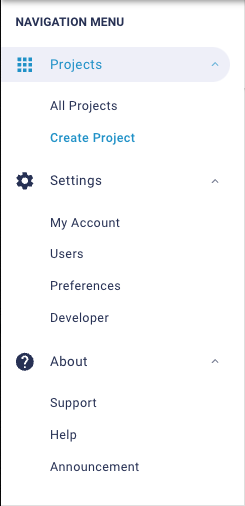
- Click Create Project
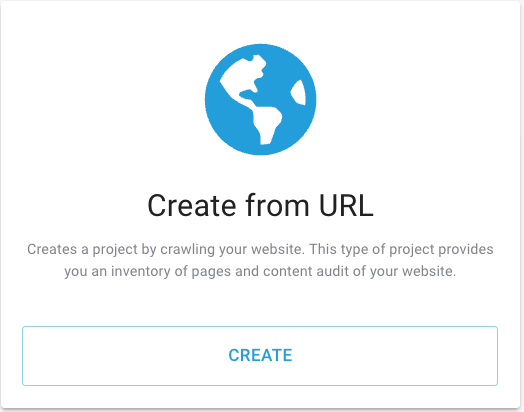
- Click CREATE under the Create from URL
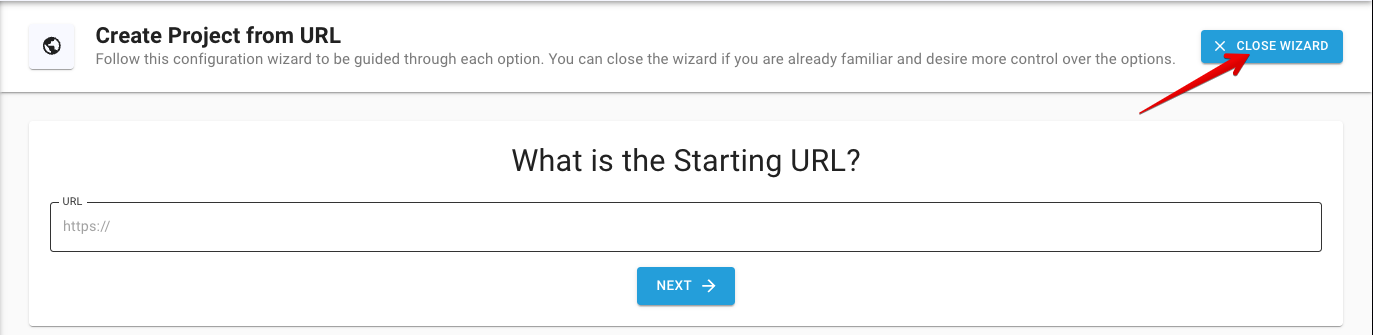
- Click CLOSE WIZARD. You will need to close the wizard so that you can edit the authentication settings.
- Open the Authentication Options section, and click the Advanced Custom System Login icon
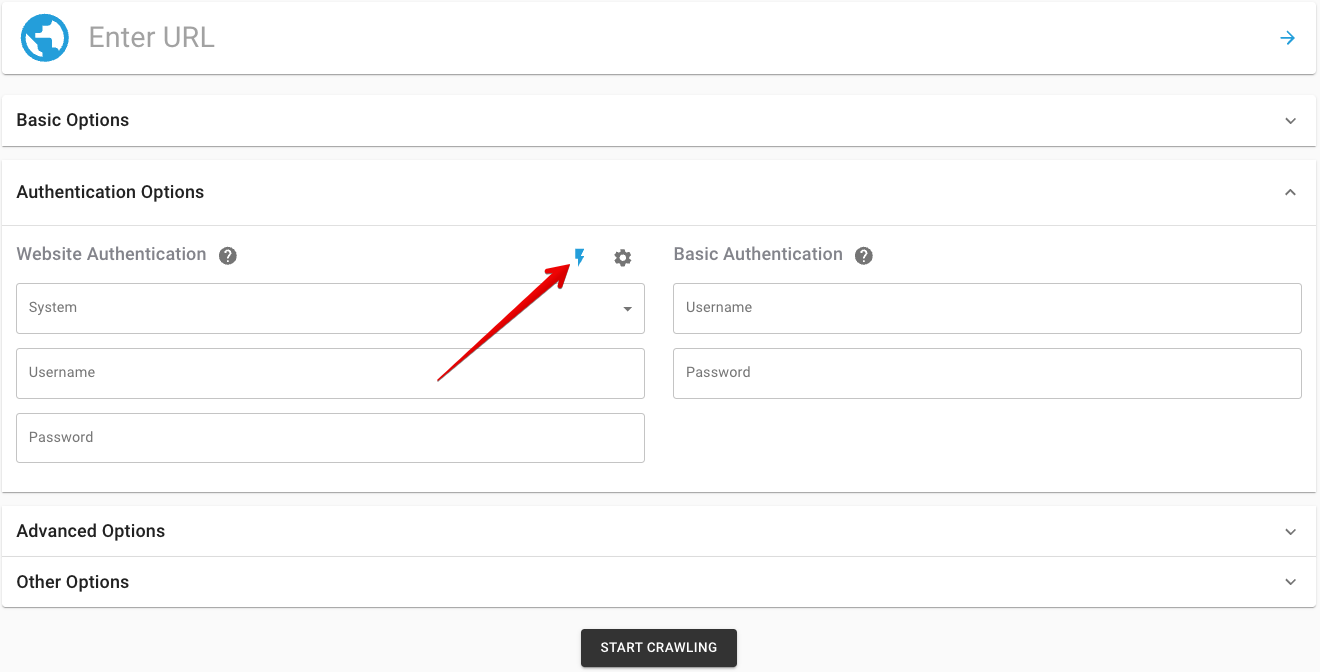
- Click IMPORT, paste the code we supply you, and click IMPORT again.

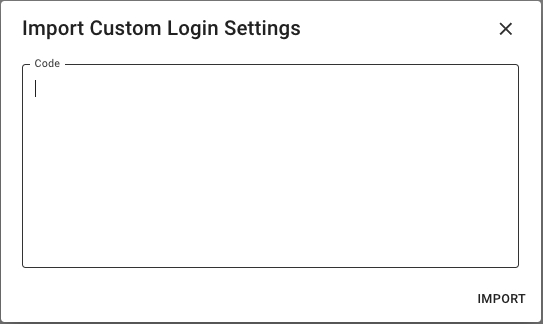
That is it. You can TEST your Custom System Login with your login credentials. After confirming that authentication is successful, you can crawl your site. Repeat steps 1 to 3, add your user credentials, and start crawling.
- Click Create Project
- Click CREATE under the Create from URL
- Click CLOSE WIZARD
- Add the LOGIN URL
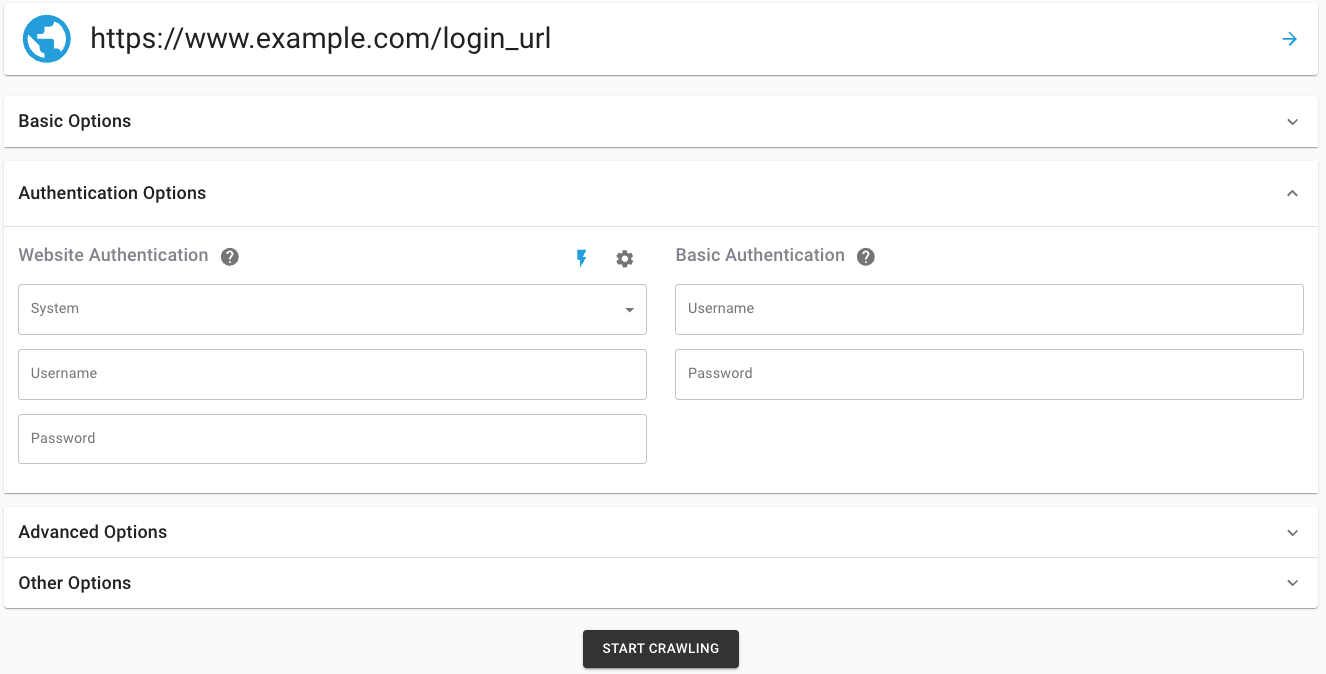
- Open the Authentication Options section, in the System dropdown, select the new Custom System Login, and add your Login Credentials
- START CRAWLING
Can I build it myself? Yes
What Do I Need to Know?
1. Learn about CSS selectors and HTML
To build a Custom System Login, you need a working knowledge of HTML and CSS. You will be telling the crawler exactly which fields on the login page hold the username and password, and how to find the submit button. That means reading the page source and writing CSS selectors that point at the right elements.
You can absolutely ask a developer to set this up. But owning the configuration yourself keeps the credentials and the selectors under your control, which is the right call for security and for everyday maintenance. You will not need a college course to learn enough HTML and CSS for the job.
Four free, well-maintained options for learning HTML and CSS:
Udacity: Intro to HTML and CSS. Udacity’s free intro is built around the question, “What does a front-end developer actually do?” rather than dumping syntax on you. By the end you can read a page, change it, and reason about why a layout breaks.
Khan Academy: Intro to HTML/CSS. Khan Academy walks through HTML and CSS in short, project-based modules. The pacing is gentle and the in-browser editor lets you experiment without setting up a local environment.
Codecademy: Learn HTML and Learn CSS. Codecademy’s two crash courses cover everything you need for a Custom System Login in roughly twelve hours. The interactive projects (a fashion blog in HTML, styling exercises in CSS) reinforce the concepts as you go.
W3Schools: HTML Tutorial and CSS Tutorial. W3Schools is the encyclopedic option. Hundreds of runnable examples, side-by-side HTML editors, and a near-complete reference for every tag and property.
2. Learn how to use a browser developer tools panel
Your browser’s developer tools are how you read the login page well enough to build a Custom System Login. Right-click any field, choose Inspect, and the tools open a panel that shows the underlying HTML, the CSS that styles it, and the network calls the page is making. That is everything you need to identify the username field, the password field, and the submit button.
Modern browser developer tools have largely consolidated, with most Chromium-based browsers sharing the same DevTools surface. Here are the options worth knowing.
Chrome DevTools. Built into Google Chrome and shared by every Chromium-based browser, including Brave, Vivaldi, Arc, and the modern Opera. Open the menu, choose More tools, then Developer tools, or right-click any element and pick Inspect. If you only learn one developer tools panel, this is the one.
Firefox Developer Tools. Built into every modern Firefox release. These replaced Firebug in 2017 and now ship with Mozilla’s recommended page inspector, network monitor, and accessibility inspector. Most longtime Firebug users have switched here.
Safari Web Inspector. The native developer tools for Safari on macOS, iOS, and iPadOS. You enable them once in Safari’s Advanced settings (“Show features for web developers”) and then access them from the Develop menu. Web Inspector is also how you debug pages running on a connected iPhone or iPad.
Microsoft Edge DevTools. Edge is Chromium-based, so its DevTools are nearly identical to Chrome’s, with a few Edge-specific extras like the 3D View, the Issues tool, and a Visual Studio Code integration that opens the same DevTools inside your editor.
Polypane. A specialized developer browser that opens several viewports side by side and runs accessibility, SEO, and performance audits across all of them at once. Worth knowing if you build responsive sites and want to inspect a login flow at every breakpoint at the same time.
Note: Firebug and Opera Dragonfly used to lead this list. Firebug was retired in November 2017 when Mozilla rolled its features into Firefox Developer Tools, and Opera dropped Dragonfly in 2013 when the browser switched to a Chromium base. If you still see them recommended somewhere, the page is out of date.
3. Build a Custom System Login
Create a DYNO Mapper account if you do not already have one. Tiered pricing is available based on the page count of your project. After you have logged into DYNO Mapper, follow these instructions.
- Click Create Project
- Click CREATE under the Create from URL
- Click CLOSE WIZARD. You will need to close the wizard so that you can edit the authentication settings.
- Open the Authentication Options section, and click the Advanced Custom System Login icon
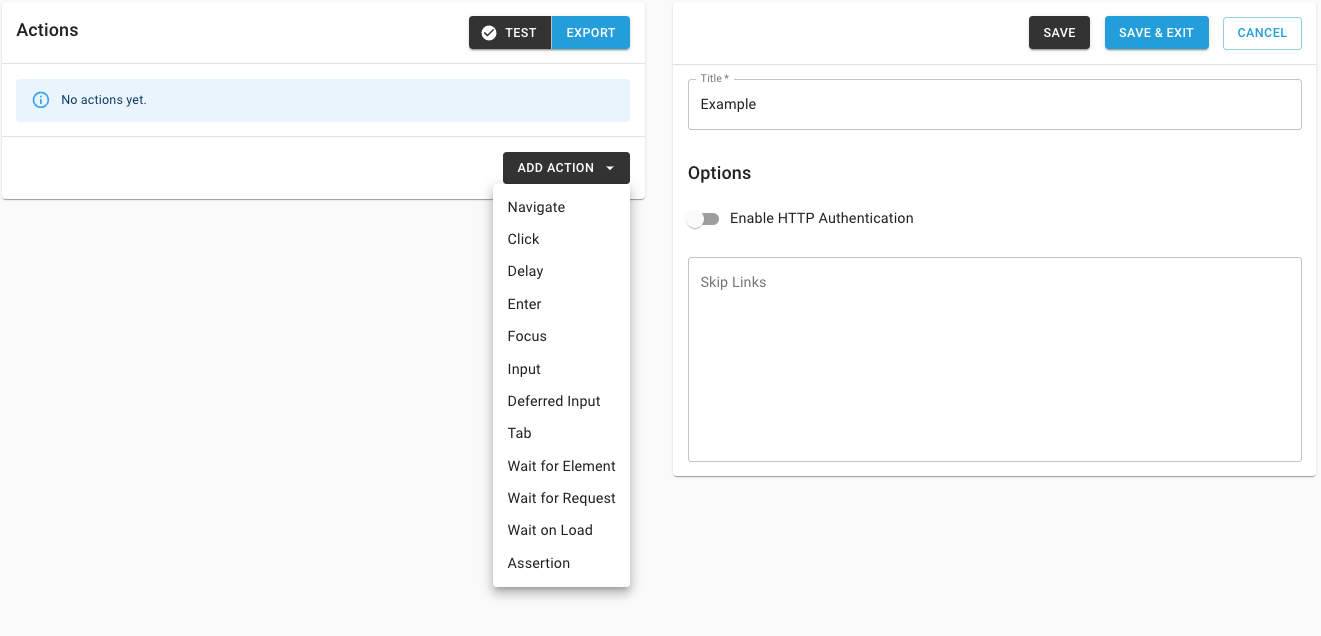
- Click CREATE
- Add a Title for your Custom Login
- Add each necessary Action and SAVE & EXIT
Frequently Asked Questions
Is it legal to crawl a password protected website?
Yes, when you own the site or have written permission from the owner. Crawling your own private pages, your staging environment, or a client site that authorized the work is standard practice for inventory, audit, and SEO. Crawling someone else’s private pages without permission crosses into unauthorized access territory and is not what this guide covers.
Why use a read-only account when crawling a private site?
Crawlers click every link they find. On an admin account, that includes links to publish, delete, install plugins, or empty trash. A read-only account can read the same pages but cannot trigger destructive actions, so a misconfigured crawl cannot damage the site.
Can Google crawl password protected pages?
No. Googlebot does not log in, and pages behind authentication are invisible to public search engines. That is by design. The point of crawling your own private site yourself is to see what Google would see after the gate comes down, so you can fix issues before launch.