
What Google Search Console Does in 2026
Search Console is Google’s direct line of communication to site owners. It does five things that nothing else does as well:
- Shows you the queries that drive traffic — exact search terms, impression and click counts, average position, and click-through rate. The closest thing to first-party search data Google provides.
- Tells you which pages Google has indexed (and which it skipped, and why). The Pages report explains indexing decisions in plain English.
- Validates technical SEO — Core Web Vitals scores, mobile usability, HTTPS issues, structured-data validity, and rich-result eligibility.
- Flags problems before you notice traffic drops — manual actions, security issues, indexing regressions. Email alerts are automatic once verified.
- Lets you request re-indexing and removals — submit sitemaps, request a URL be re-crawled, temporarily hide a URL from search.
Search Console sits alongside Google Analytics (GA4) but covers different ground. GA4 tells you what visitors did after they landed; Search Console tells you how they got there and what Google thinks of your pages.
Adding Your Site to Search Console
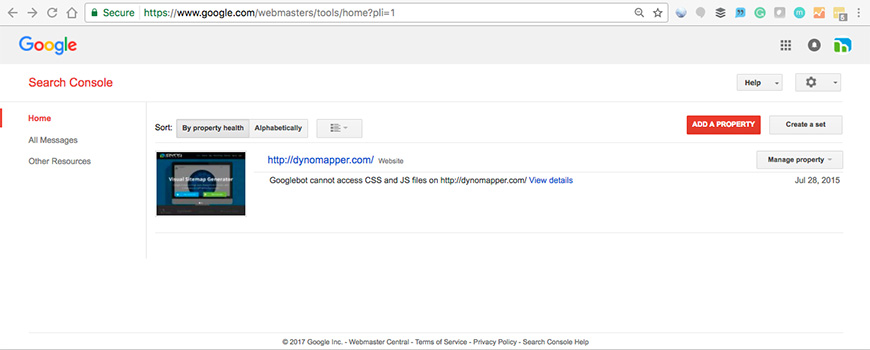
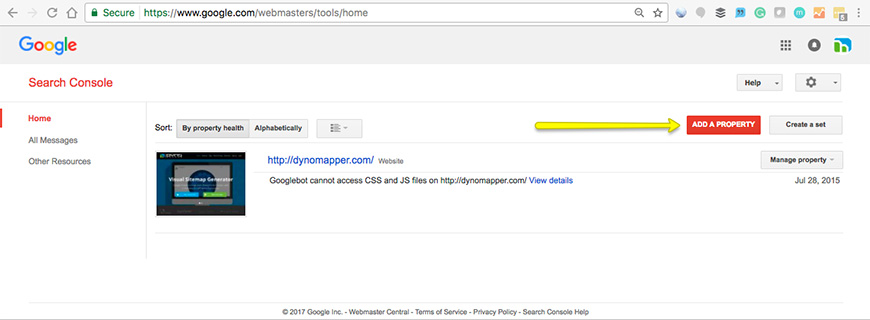
Head to search.google.com/search-console and sign in with the Google account you want to tie to your property. You’ll be asked to add a property — in 2026 there are two types, and the choice matters.
Domain Property vs URL-prefix Property
- Domain Property (introduced 2019) covers every subdomain and every protocol under a domain at once. Adding
example.comas a Domain Property automatically includeswww.example.com,m.example.com,blog.example.com, plus both HTTP and HTTPS variants. Verification requires adding a DNS TXT record with your domain registrar — slightly more work than other methods, but it’s the cleanest and most modern option, and nearly every site should use it. - URL-prefix Property covers only an exact URL prefix — if you verify
https://www.example.com, you will not see data forhttps://example.com. URL-prefix properties are still useful for tracking specific sections (a subdirectory, a single subdomain) or when DNS verification is impractical.
Rule of thumb: add a Domain Property first. Add additional URL-prefix properties only when you have a specific reason to isolate a section of the site. The older advice to “add www and non-www as separate properties” is obsolete with Domain Properties.
Verifying Ownership
Verification proves you control the site. Until you verify, Search Console shows no data. Options:
- DNS TXT record — required for Domain Properties; recommended for everyone. Add a TXT record Google provides to your domain’s DNS settings.
- HTML file upload — Google gives you a small HTML file; upload it to your root directory. Works for URL-prefix properties only.
- HTML meta tag — add a meta tag to your home page’s
<head>. Fast for sites with easy theme access. - Google Analytics — if you already use GA and the tracking code is on the site, you can verify with one click.
- Google Tag Manager — same idea with GTM’s container snippet.
Verification isn’t permanent — Google re-checks it periodically, and if the method is removed (DNS record deleted, HTML file removed), your access expires. Leave the verification in place as long as you use Search Console.
The Reports That Matter Most
Search Console has dozens of reports; most site owners use five or six regularly.
Performance Report
The headline report. Shows total clicks, impressions, average CTR, and average position — with filters for query, page, country, device, search appearance, and date range. Compare two date ranges to see what changed. Click a query to see which pages rank for it; click a page to see the queries that drive traffic to it. If you only learn one Search Console report, make it this one.
Pages (Indexing) Report
Tells you which URLs Google has indexed and which it skipped. Each non-indexed URL comes with a reason (“Crawled — currently not indexed”, “Discovered — currently not indexed”, “Duplicate, Google chose different canonical”, “Redirected”, “Blocked by robots.txt”, etc.). For most sites, most issues here are intentional (paginated archives, tag pages, parameter URLs) and can be safely ignored. The ones that need attention are pages you expect to rank that Google has declined to index.
URL Inspection Tool
Paste any URL on your site into the top search bar. Search Console returns Google’s current view of that URL — indexed or not, canonical URL Google chose, last crawl date, mobile usability verdict, rich-result eligibility, and any structured-data errors. You can also request re-indexing of a specific URL after an update. Use this after publishing new content or fixing an issue.
Sitemaps Report
Submit your XML sitemap URLs here (https://example.com/sitemap.xml is the standard location). Google uses sitemaps as one of many discovery signals, not a guaranteed crawl list — but submitting one speeds up discovery for large sites and helps you track how many URLs Google has actually indexed versus submitted.
Page Experience and Core Web Vitals
Page Experience bundles Core Web Vitals (LCP, INP, CLS), HTTPS status, and mobile usability into a single report. Core Web Vitals here uses field data from the Chrome User Experience Report (CrUX), not lab scores — it’s what Google uses for ranking, not what PageSpeed Insights shows in its lab simulation. Thresholds in 2026: LCP under 2.0 seconds (tightened from 2.5s in the March 2026 core update), INP under 200 ms, CLS under 0.1.
Enhancements / Rich Results
Any time you add structured data (BlogPosting, Product, FAQPage, HowTo, Recipe, Event), Search Console surfaces it in Enhancements. Each enhancement type gets its own report showing which URLs are valid, which have warnings, and which have errors. Fix errors promptly — they make pages ineligible for rich-result display.
Sitemaps and robots.txt
Two small files in your site root that Search Console integrates with directly:
- sitemap.xml — lists the URLs you want Google to prioritize for crawling, with optional
lastmoddates and priority hints. Most CMS platforms generate this automatically (Yoast, Rank Math, WordPress core all do). Submit the sitemap URL in the Sitemaps report; Search Console will report back on submission status and URL coverage. - robots.txt — lists the paths crawlers should and shouldn’t visit. Search Console includes a robots.txt report that shows Google’s current view of the file and flags syntax errors or unreachable content. Update robots.txt any time you add a section you don’t want indexed (staging URLs, admin paths, search-result pages).
Users, Owners, and Permissions
Search Console has three access roles, with different capabilities:
- Owner — full access. Can add and remove users, edit settings, submit sitemaps, request removals, and see all data. Two sub-types: verified owners (who completed a verification method) and delegated owners (added by a verified owner).
- Full User — can view all data and take most actions, but can’t add users or change verification. Appropriate for in-house SEO staff and contracted consultants.
- Restricted User — view-only access to most data. Appropriate for stakeholders who need reporting but shouldn’t change settings.
Best practice: keep at least two verified owners per property — ideally accounts tied to a shared mailbox or role, not a single individual. If the only owner leaves the company and their Google account is shut down, you’ll lose access and have to re-verify.
Security, Manual Actions, and Removals
Three reports you hope never to need, but that every serious site owner should know exists:
- Security Issues — Google flags here if your site is compromised (malware, phishing, hacked content, social engineering). Critical to monitor; breaches can remove your site from results within hours. Email alerts are on by default.
- Manual Actions — if a human reviewer at Google decides your site violates the spam policies (keyword stuffing, unnatural links, thin affiliate content, cloaking, deceptive content), you’ll see it here. Each manual action includes the specific reason and which pages are affected. Submit a reconsideration request from this same report after you’ve fixed the issue.
- Removals — temporarily hide a URL from Google search results for about six months (useful during takedowns or when a page is accidentally leaked). Also handles outdated-content removal requests for URLs that no longer exist but still show old snippets. Note: removals here affect Google results only, not other search engines, and they’re temporary — the permanent fix is to remove the page or use
noindex.
Advanced: API and Looker Studio
For teams managing multiple sites or running custom dashboards, Search Console offers two advanced integrations:
- Search Console API — pull Performance data, indexing status, URL inspection results, and sitemap info programmatically. Free, with reasonable daily quotas. Widely used by SEO platforms (Semrush, Ahrefs, SE Ranking) for bulk site auditing.
- Looker Studio (formerly Google Data Studio) — connect Search Console data directly to build custom dashboards with live data refresh. Combine with GA4 and other sources for full-funnel reporting. Free for most use cases.
- BigQuery export — for enterprises, Search Console can bulk-export Performance data to BigQuery on a daily schedule. Enables SQL-level analysis and joins with other data sources.
For broader rank-tracking tools that complement Search Console data, see our guide to keyword ranking tools.
Bing Webmaster Tools: The Companion You Should Also Use
Google gets most of the mindshare, but Bing Webmaster Tools is a close cousin worth setting up in parallel. Microsoft’s search engine powers Bing, Yahoo Search, DuckDuckGo’s organic results, and (notably in 2026) ChatGPT’s web search. Bing Webmaster Tools offers similar reporting to Search Console plus IndexNow integration — a protocol that notifies Bing (and increasingly other engines) of new or updated URLs instantly, rather than waiting for the next crawl. Setting up Bing Webmaster Tools takes ten minutes and gives you visibility into a growing slice of non-Google search traffic.
Working With Search Console Data
A few habits that turn Search Console from a dashboard into an SEO workflow:
- Check the Performance report weekly. Look at 7-day and 28-day trends, filter to specific pages after publishing, compare periods month over month. Not every week will show change; that’s fine.
- Filter to positions 8-20 for opportunity spotting. Queries where you’re on page 2 or near the bottom of page 1 are the highest-ROI targets for on-page optimization.
- Review the Pages report monthly. New indexing issues show up here before they affect traffic.
- Cross-reference with Google Analytics. GA4 tells you what happened after the click; Search Console tells you how the click happened.
- Keep Google’s Search Essentials open in a tab. This is what Google used to call “Webmaster Guidelines” — renamed in October 2022. It’s the authoritative list of what Google’s index rewards and what it penalizes.
Frequently Asked Questions
Is Google Search Console free?
Yes. Completely free, with no tier or premium upgrade. Anyone with a Google account can add and verify a property. The API, Looker Studio connector, and BigQuery export are also free for normal usage.
What’s the difference between Google Search Console and Google Analytics?
Search Console shows data about how your site appears in Google search — queries, impressions, clicks, indexing status, technical issues. Google Analytics (GA4) shows what visitors do after they arrive on your site — pageviews, events, conversions, session duration. The two are complementary: Search Console covers the pre-click side; GA4 covers the post-click side. Both are free and both should be set up on any serious site.
Should I use a URL-prefix Property or a Domain Property?
Use a Domain Property unless you have a specific reason not to. Domain Properties cover every subdomain and protocol under one record and give you the fullest picture of a site’s search presence. URL-prefix Properties are still useful for tracking a specific subdirectory (like a blog at /blog/) or when DNS verification isn’t possible, but they miss the traffic on other subdomains.
How long until Search Console shows data after verification?
Most properties start showing data within 24-48 hours. The full history may take up to a week to populate. If you still see “Processing data…” after several days, check that your verification is still valid and that the property URL exactly matches how your site is served (watch for trailing slashes and protocol mismatches).
Bottom Line
Google Search Console is the closest thing to authoritative data Google gives you about your own site. It’s free, it covers every part of the SEO workflow from indexing to Core Web Vitals to rich results, and it’s the first place to look when traffic shifts. Set up a Domain Property, verify via DNS, submit your sitemap, and start checking the Performance report weekly. Once you’ve got those basics in place, the rest of Search Console’s depth becomes incrementally useful — the URL Inspection tool for debugging, the API for automation, Bing Webmaster Tools as the companion. Everything else about SEO is downstream of knowing what’s happening in here.