How to test a full website for accessibility and fix the issues with your AI assistant
- Last Edited November 18, 2026
- by Garenne Bigby
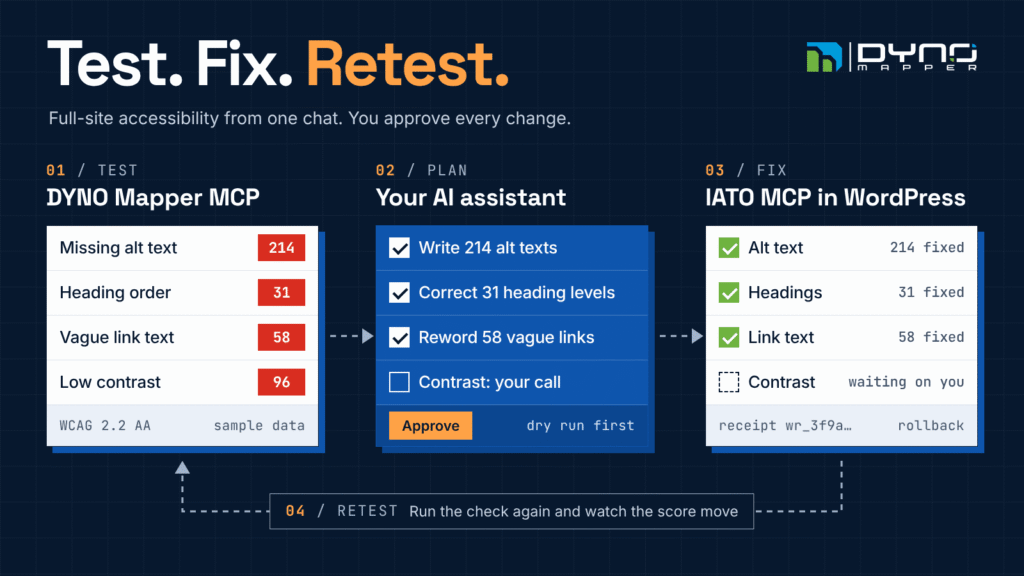
You can now test a whole website for accessibility and repair what the test finds from a single chat. The DYNO Mapper MCP server crawls the site and checks its pages against WCAG. The free IATO MCP plugin lets the same AI assistant make the fixes inside WordPress, each one previewed, receipted and reversible.
This guide walks through the loop with Claude. It works the same way in any assistant that supports the Model Context Protocol (MCP).
Testing is the easy half
Finding accessibility problems is mostly automated now. Fixing them is where sites stall.
WebAIM’s 2026 scan of the top one million home pages detected WCAG failures on 95.9% of them, with an average of 56.1 errors per page. The same six failure types lead the list every year: low contrast text (83.9% of home pages), missing alternative text (53.1%), missing form labels (51%), empty links, empty buttons and a missing page language.
None of these are hard to understand. Most of them sit in content that an editor can change. They persist because a report with thousands of rows lands on a team with no spare hours to work through it.
The deadlines are real as well. Under the extended ADA Title II timetable, US state and local governments serving 50,000 or more people must meet WCAG 2.1 Level AA by April 26, 2027. Smaller ones have until April 26, 2028.
MCP closes the gap between the report and the repair. An assistant that can read the test results and edit the CMS can do the repetitive part, while a person decides what gets approved.
Two MCP servers, one conversation
Each server does one half of the job. The assistant carries the findings from one to the other.
| DYNO Mapper MCP server | IATO MCP | |
|---|---|---|
| Job in this workflow | Crawls the site, tests its pages against WCAG, then reports and scores the results | Edits WordPress: alt text, headings, link text, page titles and CSS |
| Where it runs | Hosted at https://mcp.dynomapper.com/mcp, or locally from the @dynomapper/mcp-server npm package | A plugin on your own self-hosted WordPress site |
| Sign-in | OAuth with your DYNO Mapper account | OAuth with your WordPress login, or an Application Password |
| Guard rails | Every tool is marked read or write, so you can require approval for writes | Dry run, a change receipt for every tracked write, and rollback |
| Cost | A DYNO Mapper plan that includes Accessibility. A 14-day free trial is available | Free and open source |
The DYNO Mapper server has 108 tools in 15 modules. This workflow uses about a dozen of them, from the Projects and Accessibility modules.
IATO MCP turns a self-hosted WordPress site into an MCP server, with tools for posts, media, menus, SEO fields, CSS and Elementor. It needs WordPress 6.2 and PHP 8.0 or later.
Neither server knows the other exists. The assistant reads a finding from DYNO Mapper, finds the same page in WordPress, and calls the tool that edits it.
What you need
Setup takes a few minutes and three things.
- A DYNO Mapper account. Start a 14-day free trial or sign in to your plan. The accessibility tools need a plan that includes Accessibility.
- A self-hosted WordPress site with IATO MCP. Install IATO MCP from WordPress.org and activate it. You need an administrator account.
- An assistant that supports MCP. This guide uses Claude. Cursor, VS Code and other clients are covered further down.
Connect DYNO Mapper
- In Claude, open Settings, then Connectors, and choose Add custom connector.
- Name it DYNO Mapper and enter
https://mcp.dynomapper.com/mcpas the server address. - Click Connect, sign in to DYNO Mapper and approve access.
On Team and Enterprise plans, an organization owner may need to add the connector first.
Connect your WordPress site
- In WordPress, open Settings, then IATO MCP, and copy the MCP endpoint. It looks like
https://yoursite.com/wp-json/iato-mcp/v1/message. - In Claude, add a second custom connector with that address.
- Authorize it with your WordPress login.
Check the connection and set the guard rails
Ask the assistant: "Who am I signed in as in DYNO Mapper, and which WordPress site are you connected to?" It calls get_current_user on one server and get_site_info on the other.
Then set two things before the first run:
- Keep approval switched on for write tools in your assistant. Reads run freely, and every change waits for your yes.
- In Settings, then IATO MCP, switch off any tool you do not want an assistant to use.
If you have a staging copy of the site, connect that one first.
Step 1: Test the full site
Ask for the crawl and the test in one message.
Create a DYNO Mapper project for https://www.example.org.
When the crawl finishes, run an accessibility check against
WCAG 2.2 AA. Then tell me the score and the problem counts.
The assistant chains four tools:
create_project_from_urlqueues the crawl and creates the project.get_project_url_job_statusreports progress until the status readsFINISHED.run_accessibility_checkerstarts the test and returns a report ID.get_accessibility_resultsshows the pages checked, the problem counts and the score as the run fills in.
A few things are worth knowing before the first run:
- Name the level. Without one, the MCP tool checks against WCAG 2.2 AAA, which is stricter than the AA most laws and policies ask for. WCAG 2.0, 2.1 and 2.2 at levels A, AA and AAA are available, along with Section 508, BITV 1.0 and the Stanca Act.
- The run is not instant. The test is queued and works through the site page by page. Ask the assistant to check back, or carry on with something else.
- Findings come in three grades. Known problems are barriers identified with certainty. Likely problems are probable barriers that need a person to decide. Potential problems are ones a tool cannot decide.
- JavaScript sites need rendering. Ask the assistant to render JavaScript during the crawl if your pages build their content in the browser.
- Private pages can be tested too. DYNO Mapper signs in with basic authentication, CMS authentication or a custom login form. If a run stops for a sign-in code, the assistant relays the prompt.
Already have the site in DYNO Mapper? Skip the crawl and say: "Run the accessibility checker on my example.org project against WCAG 2.2 AA."
Step 2: Turn the report into a fix plan
A raw report is too long to act on. Ask the assistant to sort it.
Show the problems from that run by WCAG success criterion,
with the number of pages each one affects. Then sort them
into three lists: fixes you can make in WordPress content,
fixes that need a CSS or template change, and checks a
person has to make.
Three tools do the reading:
get_accessibility_report_groupsreturns each guideline and success criterion with the pages affected and the problems recorded.get_accessibility_report_itemslists the pages. It can filter to one criterion or sort by known problems.get_accessibility_report_item_resultreturns every finding on one page.
Each finding names the success criterion, describes the error and quotes the source code of the element. Some also suggest a repair. That quoted source code is what makes the next step possible: the assistant uses it to find the same element in WordPress.
Three habits keep the plan short:
- Start with known problems. They are certain. Potential problems are usually the longest list, and often you only need to confirm they are absent.
- Fix patterns, not pages. A criterion that fails on every page almost always lives in the header, the footer or the theme. One fix there clears every row.
- Sort by who can fix it. Content goes to the assistant. Colour choices go to a designer. Theme and plugin code goes to a developer.
A plan might come back like this. The numbers are sample data.
| Finding | WCAG criterion | Problems | Route |
|---|---|---|---|
| Images with no alt text | 1.1.1 Non-text Content | 214 | Assistant, in WordPress |
| Vague link text such as "Read more" | 2.4.4 Link Purpose | 58 | Assistant, in WordPress |
| Headings out of order | 1.3.1 Info and Relationships | 31 | Assistant, in WordPress |
| Low contrast text | 1.4.3 Contrast (Minimum) | 96 | Designer picks the colours, assistant applies them |
| No way to skip the navigation | 2.4.1 Bypass Blocks | Every page | Developer, in the theme |
Step 3: Apply the fixes in WordPress
Now the second server takes over. Start with the lowest-risk batch.
Start with the images that have no alt text. Write alt text
that describes each image, and show me the first 20 as a
dry run before you change anything.
The assistant follows the same four moves for every fix:
resolve_urlturns a failing URL into the WordPress post, or the Theme Builder template, that renders it.get_page_builderreports whether the page is built in Elementor, the block editor or something else. That decides which tool edits it.- The edit tool runs with
dry_runset and shows the change without writing it. - After you approve, the same call runs for real and returns a change receipt.
Which tool fixes which finding
| Finding | WCAG criterion | IATO MCP tools | Worth knowing |
|---|---|---|---|
| Images with no alt text | 1.1.1 | get_media with its missing alt filter, then update_alt_text | Saved on the Media Library image. Images in block editor content carry their own alt text, which is edited with update_post |
| Headings out of order | 1.3.1, 2.4.6 | set_heading_level | Works on Elementor heading widgets. Other content is edited with update_post |
| Vague or empty link and button text | 2.4.4 | find_elementor_widgets, update_elementor_widget, update_menu_item_details | The search finds every "Read more" across your Elementor pages in one call |
| Missing or duplicate page titles | 2.4.2 | update_post, update_seo_data | Works with Yoast SEO, RankMath and SEOPress |
| Low contrast text | 1.4.3 | set_widget_setting, update_custom_css | A design decision, so approve the colours first. Site-wide CSS needs an administrator |
| Focus outline removed | 2.4.7 | update_custom_css | One rule in the theme’s Additional CSS covers the whole site |
The guard rails
- Dry run. With
dry_runset, a tool reports the change it would make and writes nothing. - Receipts and rollback. Every tracked write returns a change receipt with an ID. Give that ID to
rollbackand the original value comes back. - Revision checks. Elementor edits can carry the revision they were based on. If someone else changed the page in the meantime, the write is refused.
- Cache. After a change, the plugin purges the cache plugins it detects and reports any cache it cannot reach, such as a CDN.
Work in batches of one fix type, and ask the assistant to keep a table of change IDs as it goes. If a batch looks wrong, you can undo exactly that batch.
Step 4: Retest and watch the score
A fix is not finished until the test agrees.
Run the accessibility check again with the same settings.
Compare the score and the known problem count with the last
run, and list anything that did not clear.
run_accessibility_checker starts a new run. get_accessibility_score returns the current score from 0 to 100 and how far it moved since the previous run. get_accessibility_history returns every finished run in order, which is enough to chart progress.
If a fix does not show up, a cache is the usual reason. IATO MCP purges the cache plugins it detects, but a CDN in front of the site has to be purged separately.
Two things keep the result from sliding back:
- Schedule the test. DYNO Mapper can run the accessibility test monthly and email you when problem counts go up.
- Track the bigger number. Accessibility is one of the three pillars of the V.A.C.Q. Score, alongside Visibility and Content Quality.
get_project_vacq_scorereturns it.
What still needs a person
This loop does a large share of the work. It does not do all of it.
Deque’s study of more than 13,000 audited pages found that automated testing caught 57% of accessibility issues by volume. The rest needed a person. Keep these in human hands:
- Alt text quality. A model can describe what an image shows. Only you know why it is on the page, or whether it is decoration.
- Design decisions. A contrast fix changes brand colours. Whoever owns the brand should pick the new pair.
- Keyboard and screen reader behaviour. Focus order, menus and dialogs have to be operated to be judged.
- Media. Captions and transcripts are produced, not patched.
- Theme and plugin code. Markup that a theme or a plugin generates is fixed in that code, or by replacing the component.
- PDFs. DYNO Mapper tests PDFs against PDF/UA-1 and the MCP server can read those results. A PDF is still repaired in its source document.
Two more points keep expectations honest.
This is not an overlay. Every change edits the page at its source in WordPress. Nothing is patched in the visitor’s browser, so the fix is there for every person and every assistive technology.
A clean run is progress, not a conformance claim. Pair the loop with manual testing before you publish an accessibility statement.
More prompts to copy
Each of these picks up after the first test run.
Heading order on one page:
List the headings on https://www.example.org/services/ in
order. Where a level is skipped, propose the correct level
and show me the changes as a dry run.
Vague link text across the site:
Find every link or button on the site that says "Read more",
"Click here" or "Learn more". Propose text that says where
each one goes, and show me the list before changing anything.
Contrast, without changing anything yet:
For the low contrast findings, list the elements affected
and where each one appears. Suggest replacement colours that
reach 4.5 to 1, but do not change anything yet.
Undoing a batch:
Roll back the heading changes you made on the services page.A summary for someone else:
Write a one-page summary for my manager: the score before
and after, what was fixed, and what still needs a person.
Claude and other MCP assistants
Both servers speak standard MCP, so the loop is not tied to one assistant.
| Client | DYNO Mapper MCP server | IATO MCP |
|---|---|---|
| Claude on the web and desktop | Custom connector with OAuth sign-in | Custom connector with OAuth sign-in |
| Claude Code | claude mcp add --transport http dynomapper https://mcp.dynomapper.com/mcp, then /mcp to sign in | The endpoint and an Application Password, set up with the plugin’s Setup Wizard |
| Cursor | A url entry in mcp.json | Same as Claude Code |
| VS Code | An http server entry in .vscode/mcp.json | Same as Claude Code |
Clients that only run local servers, such as Windsurf, can use DYNO Mapper’s npm package, @dynomapper/mcp-server, with a Personal Access Token.
IATO also lists ChatGPT and Gemini as compatible clients. DYNO Mapper’s hosted server works with any client that supports remote MCP servers with OAuth.
Two things matter more than the brand of assistant:
- Approval settings. Clients handle tool approval differently. Whichever you use, keep write tools on ask first.
- Image input. If you want alt text written from the image itself, use a model that can view images.
Common questions
Does this make my site WCAG compliant?
No tool can promise that. The loop clears the problems a machine can find and fix, and shows you what is left for a person.
Do I need Elementor?
No. Alt text, titles, menus and post content work on any self-hosted WordPress site. Elementor sites also get widget-level tools, such as set_heading_level.
Is it safe to let an assistant edit a live site?
Safer than it sounds, if you use the guard rails: dry runs, approval on every write, receipts and rollback. Start on staging, and start with one type of fix.
What does it cost?
IATO MCP is free. DYNO Mapper has a 14-day free trial, and its plans are on the pricing page.
What if my site is not on WordPress?
The testing half works on any site DYNO Mapper can crawl. For the fixing half, DYNO Mapper can turn accessibility issues into assignments in Jira, Asana or ClickUp.
Get started
- Start a DYNO Mapper free trial and connect the MCP server.
- Install IATO MCP on your WordPress site.
- Paste the prompt from step 1 and watch the first run come back.
Would you rather see it on your own site first? Request a demo.
Sources
Categories
- Last Edited November 18, 2026
- by Garenne Bigby